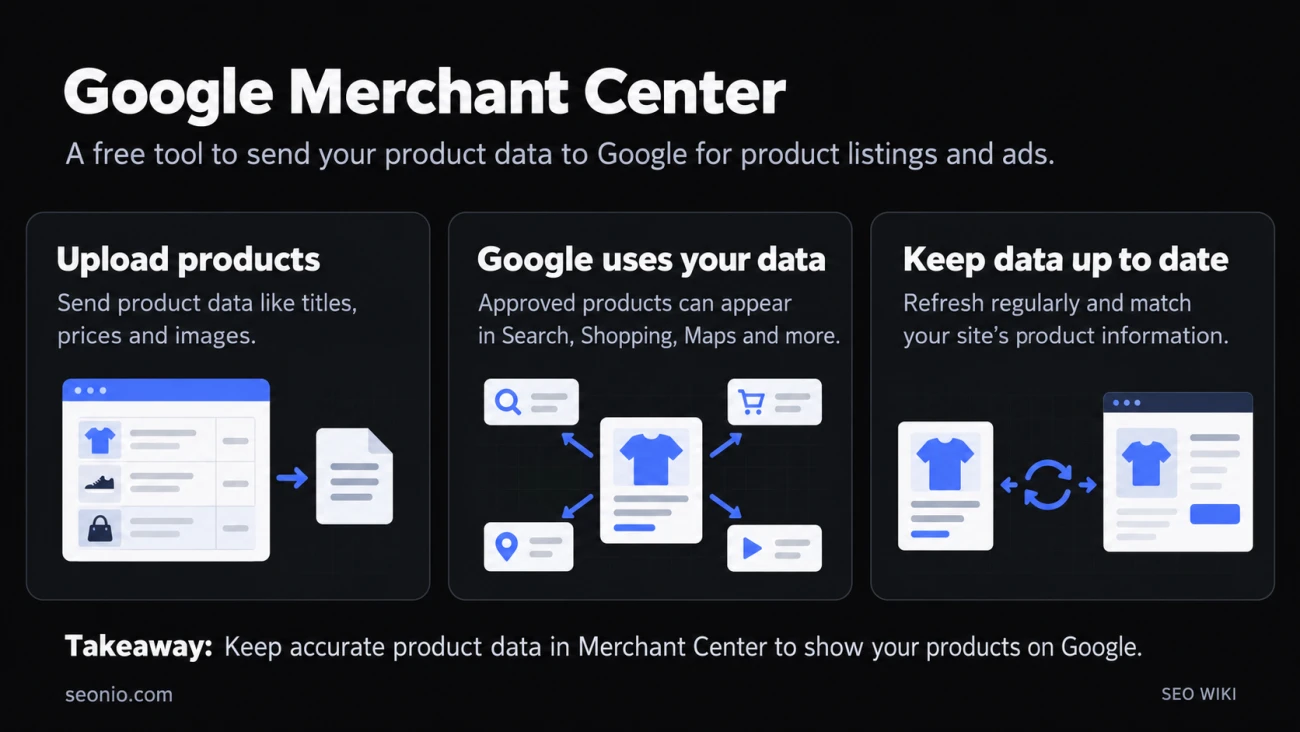
Google Merchant Center holds the product data Google uses whenever it shows your products: titles, prices, images, availability, shipping and returns. Online and local shops upload and manage that data there at no charge, and Google draws on it for free product listings and, if you advertise, for Shopping ads.
Think of it as the place where Google gets the facts about your products. A normal web page can rank without any setup, but the product boxes with a photo, price and shop name draw on Merchant Center data or on product information Google has crawled from your shop. Merchant Center is how you control that information.
Where your products can appear
Once your products are approved, they can show for free in many places. Google lists Search, the Shopping tab, Google Images, Google Lens, Maps, YouTube and Gemini (Google Merchant Center Help). New accounts are opted in to these free listings by default. Being eligible doesn't guarantee your products will show; Google still matches them to what people search for.
To pay for more visibility, link Merchant Center to Google Ads and run Shopping or Performance Max campaigns. Shopping ads don't use keywords: Google decides when to show them from the product data in Merchant Center. Clean, detailed product data matters for free listings and ads alike.
Setting up an account
You need a Google Account; one email address can create only one Merchant Center account. During sign-up you'll:
- Enter your business details and the country you sell from. Choose the country carefully: you can't change it later.
- Say where customers buy: online, in a physical store, or both.
- Pick how your product data gets to Google (see the next section).
- Connect any platform you use. If your shop runs on Shopify, for example, linking it syncs your products automatically.
Then add your shipping costs and return policy. Shipping information is required in many countries, and Google can show your return policy next to your products.
Getting your products into Merchant Center
Pick the method that fits how you already keep product data. You can combine them.
| Your situation | Method | How it stays current |
|---|---|---|
| Your product pages have product structured data | Add products automatically from your online store | Google checks your site for changes |
| Your shop runs on Shopify or another supported platform | Connect the platform | Syncs automatically; changes can take 24 to 48 hours |
| You can export a product file (.txt, .xml or .tsv) | Upload a file, or host it at a URL | A hosted file is fetched every 24 hours |
| You keep products in a spreadsheet | Google Sheets template | Synced every 24 hours |
| You have a large or fast-changing catalog | Merchant API | Your system sends updates |
| You already have products and want to add a few | Add one by one in Merchant Center | You edit by hand |
The automatic method can't power local inventory ads or free local listings. For in-store stock, use another method.
If you built on the old Content API for Shopping, note that Google shut it down on August 18, 2026; the Merchant API replaces it (Google for Developers).
The product data Google needs
Every product needs an ID, a title, a description, a link to the product page, an image link, a price and its availability. Add a brand when the product has one, a GTIN (the barcode number) when the manufacturer assigned one, an MPN when there's no GTIN, and a condition for used or refurbished items. Apparel and some other categories need more.
Keep the data identical to your site. Google's specification requires the title, description, price and availability to match your product page, your structured data and your checkout (Google Merchant Center Help). Listings link only to product pages, not to your home page or category pages.
Keeping listings active
Products expire 30 days after their last refresh. Resubmit your data or schedule regular uploads, and Google also refreshes products itself when it can check them against schema markup on your product pages (Google Merchant Center Help). Update sooner whenever a price or stock level changes.
Watch the Needs attention tab on the Products page. It shows products Google can't use and why, such as a missing GTIN or an image with promotional text on it. Fixing those is usually the quickest way to get more products showing.
Follow Google's Shopping ads and listings policies too. Google disapproves listings that break them and can suspend accounts for repeated or serious violations, for example for misrepresenting the business or its offers.
Merchant Center and SEO
Merchant Center is about product listings, not your ordinary search results: it shapes how your products can appear in the shopping results, image results and product panels on Google, where a normal blue link doesn't show a price or stock. The data you send and the product markup on your site should say the same thing. For the shopping side of Google's results, see Google Shopping.