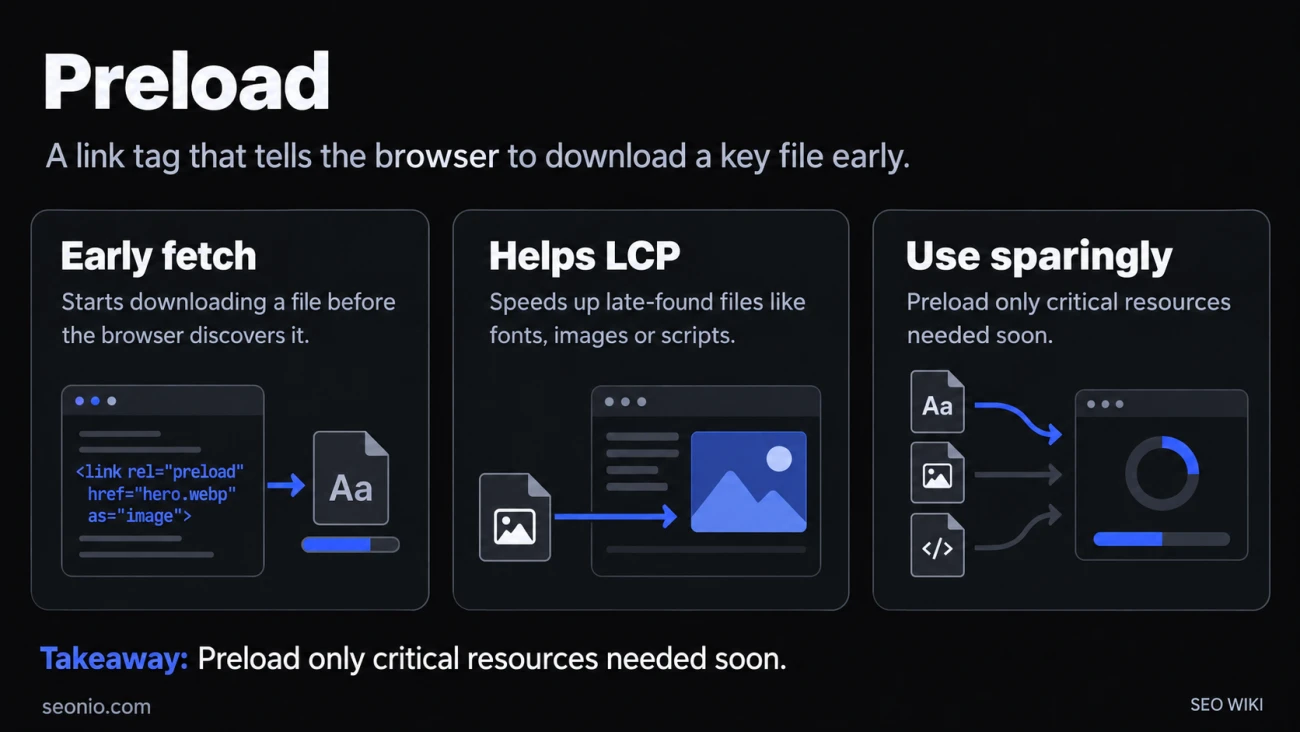
Preload is a value of the rel attribute on a <link> tag in your page's <head>. It asks the browser to start downloading a specific file right away, before the browser would discover that file on its own:
<link rel="preload" href="/fonts/inter.woff2" as="font" type="font/woff2" crossorigin>
The browser downloads the file and keeps it in its cache. It doesn't run a preloaded script or apply a preloaded stylesheet. That happens only when the page actually asks for the file, and then the copy is already there.
Don't confuse it with the preload attribute on <video> and <audio>. That attribute (none, metadata or auto) only hints how much of a media file to fetch before someone presses play.
Use preload for files the browser finds late
Browsers read the HTML from top to bottom and start fetching what they see. Some important files don't appear in the HTML at all:
- Web fonts declared with
@font-faceinside a CSS file - Background images set in CSS
- Images and scripts that JavaScript adds after the page loads
The browser learns about these only after it has downloaded and read the CSS or run the script. A preload in the <head> removes that wait: the download starts as soon as the HTML arrives.
Say your headline uses a web font that's linked from styles.css. Without a preload, the browser fetches the HTML, then the CSS, and only then the font, so the headline appears late. With the preload shown above, the font downloads alongside the CSS.
If a file is already a plain <img>, <script> or <link rel="stylesheet"> in your HTML, the browser finds it right away. Preloading it adds nothing.
Preload and Largest Contentful Paint
Preload matters most for Largest Contentful Paint (LCP), the time until the biggest image or text block shows. Google's advice is that the LCP file should be discoverable from the HTML. If it's referenced only from CSS or JavaScript, preload it with a high fetch priority (web.dev):
<link rel="preload" href="/img/hero.webp" as="image" fetchpriority="high">
The fetchpriority="high" part is needed. A preload gets the normal priority of its file type, and images start at low priority, so a preloaded hero image can still wait behind other files (web.dev).
Preload decides when the browser discovers a file; fetch priority decides how urgently it downloads. When the LCP image is already an <img> in the HTML, skip the preload and put fetchpriority="high" on the <img> itself. Either way, never lazy-load the LCP image.
Get the attributes right
| Attribute | What it does |
|---|---|
href |
The file to fetch |
as |
The file type: font, image, script, style, fetch or track |
crossorigin |
Required for font and fetch, even on your own domain |
type |
The MIME type; a browser that doesn't support the format skips the preload |
media |
A media query, so you preload only for certain screen sizes |
imagesrcset, imagesizes |
For responsive images: the same values as the <img>'s srcset and sizes |
fetchpriority |
high, low or auto |
Two of these cause most mistakes:
- A missing or wrong
as. The browser can't set the right priority or match the preload to the later request, and some files, such as scripts, are fetched twice. - Fonts without
crossorigin. Browsers fetch fonts in anonymous CORS mode. A font preload withoutcrossorigindoesn't match that request, so the font downloads twice (MDN).
For JavaScript modules, use <link rel="modulepreload"> instead. You can also send a preload as an HTTP header, which lets the browser start before it has read any HTML:
Link: </css/style.css>; rel="preload"; as="style"
When preload slows a page down
Most resource hints are suggestions the browser may ignore. Preload isn't: the browser fetches every file you list, and that bandwidth comes out of everything else the page needs. Google's web.dev team puts it plainly: if too many resources are prioritized, effectively none of them are. People on slow connections feel it most.
Avoid these:
- Preloading files the browser already sees early in the HTML, such as your main stylesheet
- Preloading several images, fonts or formats "just in case." Preload only the format most of your visitors will use, for example AVIF but not also WebP.
- Preloading a file the page never uses. Chrome logs a console warning about three seconds after the
loadevent when that happens.
A good rule: preload one or two critical files that the browser discovers late, not a list.
Preload, prefetch and preconnect
Preload is one of several resource hints. They differ in what they fetch and for which page:
| Hint | What it does | For | Can the browser skip it? |
|---|---|---|---|
preload |
Downloads a specific file | The current page | No |
prefetch |
Downloads a file at low priority | A page the visitor will probably open next | Yes |
preconnect |
Opens a connection, downloads nothing | A server you'll request files from soon | Yes |
Use preconnect when you know a third-party server but not the exact file. Use prefetch for the next page, not this one.
Check that a preload works
Open Chrome DevTools, go to the Network panel and reload the page. The preloaded file should start early in the waterfall and appear only once. If it appears twice, check as and crossorigin. Look in the Console for unused-preload warnings.
Then compare LCP before and after the change, and keep the preload only if it helps.
Does preload help SEO?
Only indirectly. A well-placed preload can improve LCP, one of the Core Web Vitals, and Google says its ranking systems use Core Web Vitals. Google also says it shows the most relevant content even when page experience is weak (Google Search Central). So treat preload as a speed fix for your visitors, not a ranking lever.