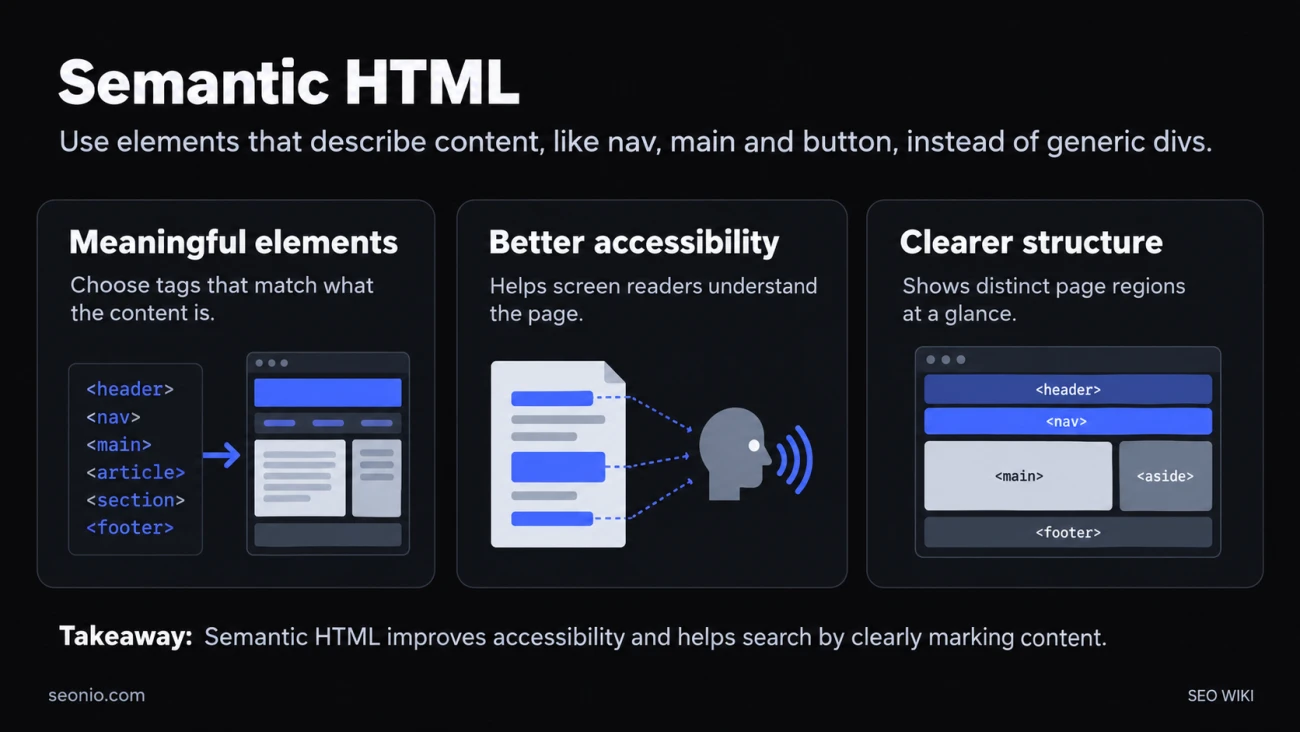
Semantic HTML means marking up content with the elements that describe what it is: <nav> for a site menu, <main> for the main content, <button> for something you click to act, <h2> for a section heading. The opposite is building everything from generic <div> and <span> elements and using classes to hint at the purpose, like <div class="nav">.
Both versions can look the same on screen, because how things look is CSS's job. The difference is what the browser, a screen reader or a crawler can tell about each part of the page.
The elements you'll use most
| Element | Use it for |
|---|---|
<header> |
Introductory content: a logo, site title, search box. A page can have several, for example one per article. |
<nav> |
Major blocks of navigation links. Not every group of links needs one. |
<main> |
The page's dominant content. Use one visible <main> per page. |
<article> |
Content that would make sense on its own or in a feed: a blog post, a product card, a comment. |
<section> |
A thematic part of a page, usually with its own heading. |
<aside> |
Content related to what's around it but separate, like a sidebar or a pull quote. |
<footer> |
Information about its section or page: author, copyright, related links. |
<h1>–<h6> |
Headings, in a hierarchy that matches the content's outline. |
<a href>, <button> |
Links go somewhere. Buttons do something on the page. |
Plenty of smaller elements carry meaning too: <ul> and <ol> for lists, <figure> and <figcaption> for an image with its caption, <time> for a date, <blockquote> for a quotation, <table> for tabular data.
The HTML standard calls <div> "an element of last resort", for when no other element fits (HTML Standard). It's still useful as a styling wrapper. It just shouldn't stand in for a menu, a button or a heading.
Who benefits: mostly people using assistive tech
Browsers turn your HTML into an accessibility tree, and screen readers and other assistive tools read that tree. Semantic elements arrive in it with built-in roles:
- Landmarks. A page-level
<header>becomes the "banner" landmark,<nav>"navigation",<main>"main",<aside>"complementary" and a page-level<footer>"contentinfo". Screen reader users jump between landmarks to skip straight to the content or the menu. A<section>only becomes a landmark if you give it an accessible name, such as witharia-label. - Headings. Screen readers can list a page's headings and jump between them, much as sighted readers skim. Text that's only styled big and bold doesn't show up in that list.
- Controls. A real
<button>can be reached with the Tab key and pressed with Enter or Space. A<div>with a click handler can't, until you add focus handling and key events yourself (MDN).
Developers benefit too. <nav> and <article> say what a block is faster than a stack of nested <div>s with class names.
For more on building pages everyone can use, see accessibility.
What it does for SEO
Less than many guides claim. Google's SEO starter guide says heading order doesn't matter for Google Search, and that because so much of the web isn't valid HTML, Google Search "can rarely depend on semantic meanings hidden in the HTML specification" (Google Search Central). Swapping <div>s for <section>s won't move your rankings.
A few basic elements do matter to Google, because its systems look for them:
- Links need to be
<a>elements with anhrefattribute. Google generally can't crawl links built any other way, such as a script on a<span>(Google Search Central). - Images should be
<img>elements. Google finds images in thesrcattribute and doesn't index CSS background images. - Titles and headings are among the sources Google uses to write a page's title link in search results.
So the SEO case for semantic HTML is mostly about getting these basics right. The accessibility case is the bigger one.
How to write semantic HTML
- Pick elements by meaning, then style with CSS. Ask what a piece of content is before you think about how it looks. Never use an
<h1>just to make text big, and never skip<button>because you don't like its default style. - Prefer native elements to ARIA. The first rule of ARIA use is to use a native HTML element that already has the meaning and behavior you need (W3C).
<nav>beats<div role="navigation">, and<nav role="navigation">adds nothing. - Keep headings in order. One clear main heading and nested
<h2>and<h3>levels make the page easy to scan with a screen reader, even if Google doesn't mind. - Choose between
<article>,<section>and<div>by one question. Would this make sense on its own, say in a feed? Then<article>. Is it a themed part of something bigger, with a heading? Then<section>. Is it only there for layout? Then<div>. - Check the result. Your browser's developer tools show the accessibility tree. Look for the landmarks and headings you expect, and run an HTML validator to catch broken nesting.
For the bigger picture, including meaning added through structured data, see semantic markup. The page regions themselves are covered in HTML5 sectioning elements.