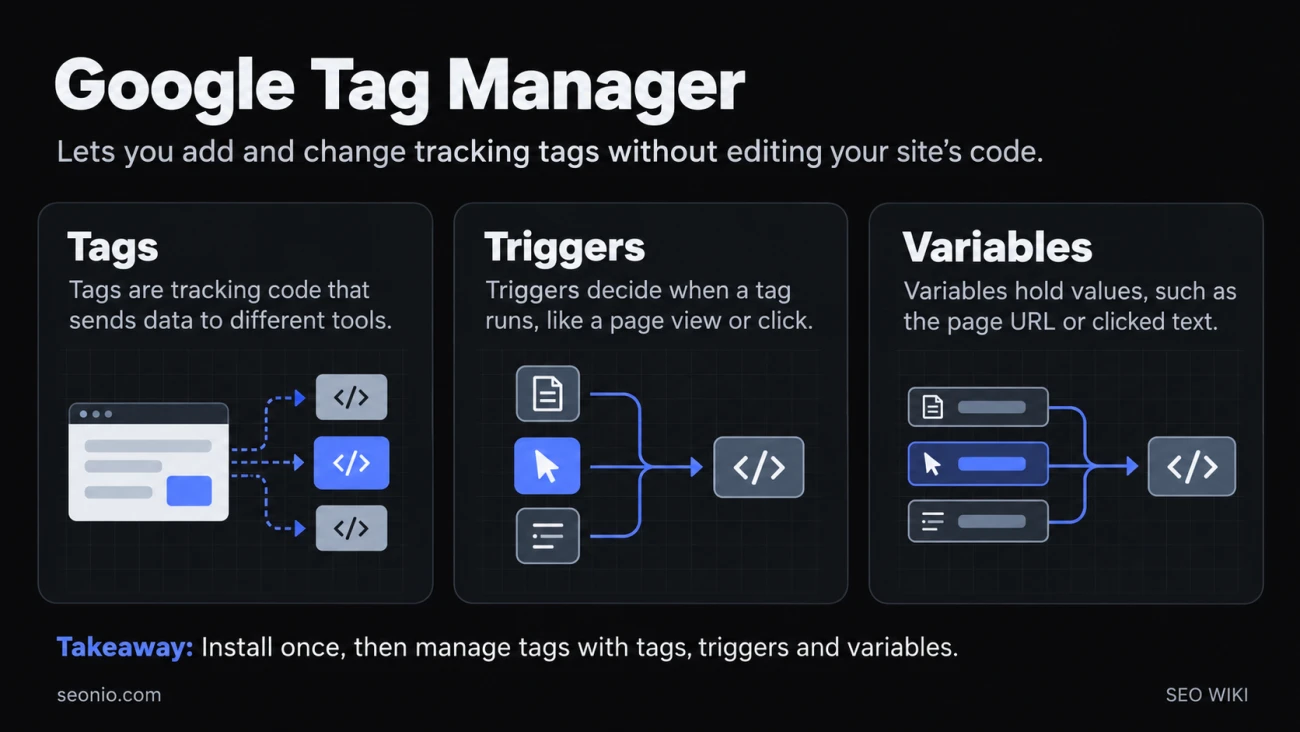
Google Tag Manager (GTM) is a free tool for adding and managing the small pieces of tracking code, called tags, that analytics and advertising tools ask you to put on your site. You install Tag Manager's code once. After that, you add, change and remove tags in Tag Manager's web interface instead of editing your site's code each time.
A typical site uses it to send data to Google Analytics, record conversions for Google Ads and load tags from other ad and analytics platforms. There's also an enterprise version, Tag Manager 360, sold as part of Google Marketing Platform.
Do you need Tag Manager?
Not always. If you only use Google Analytics or Google Ads, the Google tag on its own may be enough.
| Your situation | Good fit |
|---|---|
| You only need Google Analytics page views, clicks and scrolls, or Google Ads conversions | The Google tag (gtag.js), one snippet on every page |
| You use tags from several companies, not just Google | Tag Manager |
| Marketers need to change tracking without waiting for a developer | Tag Manager |
| You want to track custom events, such as form submissions or button clicks, and test before going live | Tag Manager |
The Google tag can send data only to Google's own services. Tag Manager handles Google tags, many third-party tags through templates, and your own custom tags (Tag Manager Help).
How tags, triggers and variables work
Everything in Tag Manager is built from three parts, kept together in a container for each website or app.
- Tags are the code you want to run, such as a Google Analytics event or an ad platform's conversion code.
- Triggers decide when a tag runs. A trigger listens for an event, such as a page view, a click or a form submission. Every tag needs at least one trigger.
- Variables are placeholders for values that are filled in as the page runs, such as the page URL or the text of a clicked button. Triggers use them as conditions, and tags use them to pass data on.
Say you want to count contact-form submissions as a Google Analytics event. You'd create a tag that sends an event called contact_form, attach a form submission trigger, and add a condition that the Page URL variable contains /contact. The tag now runs only when someone submits the form on your contact page.
For data the page doesn't show, such as an order value, developers push it into the data layer, a JavaScript object Tag Manager reads. Variables can then pick it up and pass it to your tags.
How to set it up
- Create an account and a container. Sign in at tagmanager.google.com. Create one account for your company, then one container per website or app. For a website, choose the "Web" container type.
- Install the two code snippets. Paste the first as high in the
<head>of every page as possible, and the second immediately after the opening<body>tag. If your site runs on a CMS or a website builder such as WordPress, Shopify or Wix, an integration can do this for you. - Add your tags. Create each tag, pick a trigger, and add variables where needed.
- Test in Preview mode. Preview opens your site as if your changes were live and shows which tags fired, in what order and with what data. Regular visitors don't see it.
- Publish. Nothing goes live until you publish. Each publish saves a version, so if something breaks you can go back to an earlier version and publish it again.
Things to watch
- Consent. If you need visitors' consent before tags run, set it up first. Tag Manager has a Consent Initialization trigger that fires before any other tag and per-tag consent settings that work with consent mode.
- Page speed. Tag Manager makes it easy to add tags, and every tag is extra code for the browser to load. Remove tags you no longer use.
- Access. Anyone who can publish a container can change what code runs on your site. Give publish rights only to people who need them.
- Server-side tagging. You can also set up a server container that you host. It uses the same tags, triggers and variables, and Google names faster pages, more control over user privacy and better data quality as the reasons to use it.
Tag Manager and SEO
Tag Manager is mostly about measurement, but it touches SEO in two places. You can use your Tag Manager snippet to verify your site in Google Search Console. And you can add JSON-LD structured data through a Custom HTML tag, which Google supports (Google Search Central). Use variables to read the values from the page rather than typing them again, so the markup can't drift from what visitors see. For product prices and availability, Google warns that markup added by JavaScript can make Shopping crawls less frequent and less reliable, so put that markup in the page's HTML where you can.